
HD Photo Converter vs TinyFast
Side-by-side comparison to help you choose the right AI tool.

HD Photo Converter
HD Photo Converter instantly turns blurry photos into sharp, high-definition images with AI.
Last updated: March 11, 2026

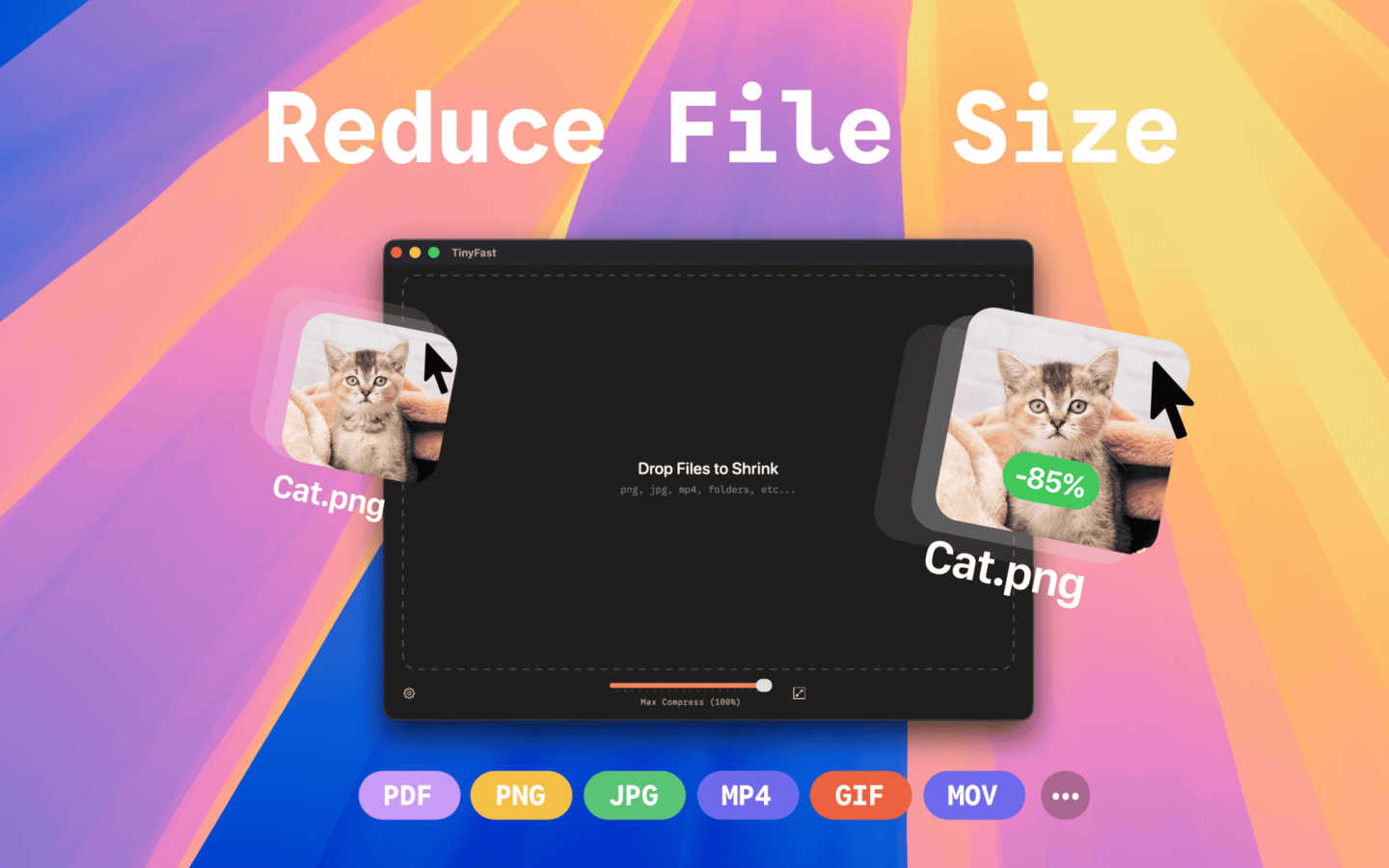
TinyFast shrinks your images, videos, and PDFs instantly and privately right on your Mac.
Last updated: March 1, 2026
Visual Comparison
HD Photo Converter

TinyFast
Feature Comparison
HD Photo Converter
One-Click AI Enhancement
Simply upload your photo, and with a single click, the AI goes to work. It intelligently analyzes your image to apply the perfect balance of upscaling for size, sharpening for detail, and denoising for a clean finish. This all-in-one process eliminates the need to juggle multiple tools or complex settings, delivering a professionally enhanced image in under 5 seconds.
Intelligent Portrait & Face Recovery
This feature specifically targets portraits, expertly recovering facial details that are often lost in low-light conditions or due to image compression. It enhances clarity in eyes, skin texture, and hair while maintaining a natural and consistent look. It's perfect for improving profile pictures, campaign photos, or any portrait where preserving identity and enhancing quality is key.
Batch Processing for Bulk Upscaling
Need to enhance an entire catalog of product photos or a folder of old scans? HD Photo Converter's batch processing capability lets you upscale and improve multiple images at once with just one click. This saves an enormous amount of time compared to manual editing or running complex scripts, making it ideal for teams and businesses with high-volume image needs.
Side-by-Side Preview Before Download
Before you commit to your enhanced image, the tool provides a clear, side-by-side comparison of the original and the AI-processed version. This instant preview allows you to verify the quality of the enhancement, ensuring you get the exact result you want before downloading the final HD photo, giving you complete confidence in the output.
TinyFast
100% Local & Private Processing
Your files never leave your Mac. TinyFast performs all compression directly on your device, ensuring total privacy. This is crucial for anyone working with sensitive documents, client assets, or proprietary code under NDAs. You get peace of mind knowing there are no cloud uploads, no third-party servers, and no risk of your data being stored or accessed by anyone else.
Blazing-Fast Drag & Drop Compression
Speed is at the heart of TinyFast. Simply drag your files or entire folders into the app, and it gets to work instantly. There's no waiting for files to upload to a website and then download again. Using optimized native engines built for macOS, it shrinks even large files in seconds, turning a previously tedious task into a quick and effortless part of your routine.
Universal File Format Support
TinyFast is a versatile tool that supports a wide array of common file types. This includes images (PNG, JPG, WebP, GIF, SVG), videos (MP4, MOV), documents (PDF, DOCX), code files (JS, CSS, JSON), and audio (MP3). Instead of searching for a different online tool for each file type, you have one reliable app that handles almost everything you throw at it.
Batch Processing & Resolution Control
Efficiency is key. You can drop entire folders of files for compression all at once, saving you from processing items one by one. Furthermore, for images and videos, TinyFast offers the option to automatically resize the resolution during compression. This gives you extra control to reduce dimensions alongside file size, perfect for optimizing assets for web use or specific platform requirements.
Use Cases
HD Photo Converter
eCommerce Product Listing Enhancement
Online sellers and shop owners can use HD Photo Converter to instantly upgrade low-quality supplier images into crisp, clean catalog assets. This improves product clarity for customers, reduces the chance of marketplace listing rejections, and helps create a more professional and trustworthy storefront with visually consistent imagery.
Social Media Content Preparation
Creators, influencers, and social media managers can ensure their feeds always look polished. The tool quickly prepares photos taken from various devices and under different conditions, removing compression artifacts and enhancing details to create eye-catching thumbnails, stories, and posts that stand out in a crowded feed.
Family Photo Archive Restoration
Breathe new life into cherished old photographs, scanned prints, or faded digital memories. HD Photo Converter is excellent for restoring vintage portraits and family photos by reducing noise, fixing blurriness, and recovering lost details, allowing you to preserve and share your history in stunning high definition.
Professional Portrait Retouching
Photographers, models, and agencies can streamline their workflow by using HD Photo Converter for initial retouching. It provides a fast foundation by automatically enhancing skin texture, sharpening facial features, and improving overall image clarity, freeing up more time for creative adjustments and artistic decisions.
TinyFast
Preparing Assets for Web or App Development
Developers and designers can quickly optimize batches of images, icons (SVG), and videos for their projects. Compressing these assets locally ensures faster load times for websites and apps while keeping unreleased designs and code completely confidential during the development process.
Emailing Large Files or Client Deliverables
Professionals often need to email large presentations, PDF reports, or video proofs to clients and colleagues. TinyFast allows you to shrink these documents and media files down to a manageable size for email attachments quickly and securely, without using insecure online transfer services.
Managing Personal Photo & Video Libraries
For photographers, hobbyists, or anyone with a large personal media library, TinyFast helps free up valuable disk space. You can compress years of photos and home videos to save storage without noticeable quality loss, all while keeping your private memories safely on your own computer.
Compressing Screenshots and Recordings for Documentation
Creating tutorials, bug reports, or internal documentation often involves screenshots and screen recordings. These files can be surprisingly large. TinyFast lets you compress them instantly before uploading to project management tools, wikis, or help desks, making collaboration smoother and faster.
Overview
About HD Photo Converter
HD Photo Converter is your friendly, AI-powered assistant for transforming ordinary or problematic photos into stunning, high-definition images. It's built for anyone who wants professional-looking results without the complexity of traditional photo editing software. Whether you're a creator polishing social media content, a business owner enhancing product photos, or someone looking to restore precious family memories, this tool simplifies the entire process. Its core value lies in delivering faster, cleaner, and more predictable photo improvements. Instead of spending minutes or hours manually retouching blurry, noisy, or low-resolution images, you can upload a photo and get a sharper, cleaner, and more detailed version in just seconds. It combines powerful AI functions like upscaling, sharpening, denoising, and portrait recovery into one seamless workflow, making high-quality visual output accessible to everyone, regardless of their technical skill level.
About TinyFast
TinyFast is your Mac's personal file-shrinking powerhouse, designed to make digital life simpler, faster, and more secure. At its core, it's a macOS application that compresses images, videos, and documents directly on your computer. This means you can dramatically reduce file sizes for easier sharing, storage, and uploading without ever sending your sensitive data to the internet. It's built for developers, designers, marketers, and any creator who values their time and privacy. Imagine needing to send a batch of high-res project images to a client or reduce a video file to fit an email attachment—TinyFast handles it in seconds with a simple drag-and-drop. Its main value proposition is a powerful combination of blazing-fast local processing and ironclad privacy, ensuring your confidential files never leave your Mac. By eliminating uploads, server queues, and privacy worries, TinyFast seamlessly integrates into your workflow, offering a reliable and efficient way to optimize your files.
Frequently Asked Questions
HD Photo Converter FAQ
How many free images can I process?
Every user gets 1 free HD image generation per day. This is a great way to test the tool's capabilities with your own photos regularly without any commitment. For more frequent use, you can purchase credit packs to continue enhancing images.
What kind of image formats does it support?
HD Photo Converter supports common image formats like JPG and PNG. You can upload your blurry or low-quality photos in these formats, and the tool will process and provide you with a high-quality download in a compatible format, typically a high-resolution JPG or PNG file.
Is it difficult to use for beginners?
Not at all! HD Photo Converter is designed with a zero-learning curve. The process is a simple three-step flow: upload your image, click the enhance button, and download the result. There are no complicated settings or technical knowledge required, making it accessible for everyone.
Can I use it for commercial projects?
Absolutely. HD Photo Converter is built to deliver reliable, repeatable quality suitable for commercial use. Many brands and teams use it to prepare images for websites, marketing materials, and product listings. It's a trusted tool for creating publish-ready assets that help drive customer trust and engagement.
TinyFast FAQ
Is TinyFast really free to use?
Yes, TinyFast offers a fully-featured Free Forever plan. This allows you to compress up to 5 files per day at no cost, giving you a great way to test all its features. For unlimited use, there are one-time lifetime and monthly subscription plans available.
How does local compression protect my privacy?
Local compression means the entire process happens on your Mac's processor and memory. Your files are never sent over the internet to external servers. This design guarantees that sensitive, confidential, or proprietary files remain completely under your control and are never exposed to potential data breaches or third-party access.
What file types does TinyFast support?
TinyFast supports a broad range of common formats. This includes images like PNG, JPG, HEIC, WebP, GIF, BMP, and SVG; videos like MP4, MOV, and M4V; documents like PDF and DOCX; code files like JS, CSS, and JSON; and audio files like MP3.
Can I compress multiple files at once?
Absolutely! TinyFast supports batch processing. You can drag and drop an entire folder containing multiple files, and the app will compress them all in one go. This is a massive time-saver compared to uploading files individually to online websites.
Alternatives
HD Photo Converter Alternatives
HD Photo Converter is an AI-powered tool in the image enhancement category, designed to quickly transform portraits and photos into sharper, cleaner, and more professional-looking high-definition images. It's built for creators, businesses, and everyday users who want to streamline their photo improvement without diving into complex editing software. Users often explore alternatives for a variety of reasons. This could be due to budget constraints, a need for different features like batch processing or specific filters, or simply because they require a tool that works on a different platform, such as a mobile app or a specific operating system. Finding the right fit depends on your unique workflow and goals. When choosing an alternative, it's wise to consider a few key factors. Think about the core features you need most, your comfort level with different interfaces, and the value for the price. A good alternative should match your technical skill level and efficiently solve the specific photo enhancement challenges you face most often.
TinyFast Alternatives
TinyFast is a popular Mac app in the productivity and management category, designed to shrink images, videos, and PDFs quickly and directly on your computer. It's a favorite for its local processing, which keeps files private, and its simple drag-and-drop workflow. Users often explore other options for various reasons. Some might need a tool that works on Windows or online, while others may be looking for different pricing models or more specialized features like advanced editing or cloud storage integration. It's a natural part of finding the perfect tool for your specific needs. When evaluating alternatives, consider your core requirements. Key factors include the types of files you need to compress, whether you need cross-platform availability, your budget, and how important local, private processing is versus the convenience of a web-based service. Prioritizing these elements will help you find the best fit.