

Export to Figma
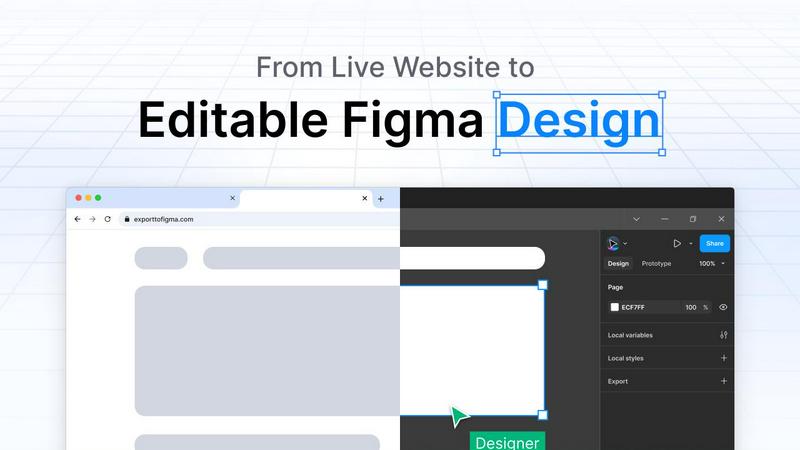
Export to Figma captures any website and pastes it into Figma as fully editable layers, fonts, and styles.
About Export to Figma
Export to Figma is a powerful Chrome extension that changes how designers and developers move web content into Figma. Instead of taking screenshots or manually rebuilding layouts from scratch, this tool lets you capture any live website and paste it directly into Figma as fully editable layers. Every element, from fonts and colors to spacing and images, lands exactly as it appears on screen. The extension is built for modern workflows involving UI/UX design, rapid prototyping, frontend collaboration, and AI-generated websites. It works on any website, including AI-generated apps from platforms like Claude Code, Lovable, Bolt, Vercel, v0, and Replit. With one click, you can capture a full page or a specific element, and the tool preserves layout, text, colors, images, typography, spacing, and structure as editable layers inside Figma. This means no more tracing screenshots, no more manual rebuilding, and no more lost time. Export to Figma is designed for solo designers, product teams, developers, and freelancers who need to move fast and keep their tools in sync. It supports full-page capture, responsive layouts, clean layer organization, and high-quality image extraction without relying on screenshots. The result is a seamless workflow that saves hours of tedious work and lets you focus on what matters most, creating great designs.
Features of Export to Figma
One-Click Capture
Click any element on any website to instantly capture it with perfect accuracy. You do not need to take a screenshot or use any complex selection tool. Simply click the Export button in your Chrome toolbar, and the extension captures the page or element you want. This feature works on full pages, specific sections, or individual components, giving you full control over what you bring into Figma. The capture process is fast and reliable, so you can grab multiple elements in seconds without any slowdown.
Style Preservation
Colors, fonts, shadows, and effects are captured with pixel-perfect precision. When you paste a captured design into Figma, every style property is preserved exactly as it appears on the live website. This includes gradient fills, border radii, box shadows, text shadows, and opacity settings. You do not need to manually inspect elements or guess at values. The extension reads the computed styles from the browser and translates them into Figma-compatible properties, so your design lands ready to edit with all the visual details intact.
Layer Structure
Maintains proper layer hierarchy and naming for easy editing in Figma. Instead of getting a flat mess of unlabeled groups, Export to Figma organizes captured elements into a clean, logical layer panel. Each component is named based on its HTML structure, and groups are created for related elements like navigation bars, cards, or sections. This makes it simple to find and edit specific parts of the design after pasting. You can immediately start tweaking colors, moving elements, or adjusting spacing without spending time cleaning up the layer list.
Image Extraction
Automatically extracts and embeds images at their original quality. When you capture a website, the extension downloads every visible image and places it directly into the Figma file as a fill or image layer. There is no compression, no resolution loss, and no broken links. Images are embedded at their original dimensions and file quality, so they look crisp and professional in your design. This is especially useful for capturing hero images, product photos, icons, and background images that you want to reuse or modify in Figma.
Use Cases of Export to Figma
Rapid UI Redesigns
When you need to redesign an existing website or web app, Export to Figma lets you capture the current UI in seconds. You can paste it into Figma and immediately start iterating on the layout, colors, typography, and spacing. There is no need to recreate every element from scratch or take screenshots that are hard to work with. This is perfect for designers who need to propose new designs quickly, compare variations, or update an outdated interface without losing the original structure and style.
Frontend Development Handoff
Developers can use Export to Figma to capture live websites and bring them into Figma for inspection or redesign. Instead of manually inspecting CSS properties or taking screenshots, they can paste the entire UI into Figma and examine the layer structure, spacing, and styles. This makes it easier to understand how a design is built, identify areas for improvement, or create a reference file for rebuilding components in a design system. It also helps bridge the gap between live code and design files.
AI-Generated Website Editing
Export to Figma is built to work with AI-generated websites from platforms like Claude Code, Lovable, Bolt, Vercel, v0, and Replit. When you generate a landing page or web app using AI, you can capture the output and bring it into Figma for fine-tuning. This is incredibly useful because AI-generated code often needs visual adjustments, branding updates, or layout refinements. Instead of editing code directly, you can polish the design visually in Figma and then export the updated styles back to your development workflow.
Client Presentation and Feedback
Freelancers and agencies can capture live websites or competitor designs to use as references in client presentations. Instead of linking to a live URL or sharing a static screenshot, you can paste the captured design into Figma and annotate it with comments, highlight specific elements, or create side-by-side comparisons. This makes it easier to explain design decisions, gather feedback, and iterate on proposals. Clients can see exactly what the final design will look like without any guesswork.
Frequently Asked Questions
How does Export to Figma capture a website without using screenshots?
Export to Figma works by reading the live HTML, CSS, and JavaScript of the website you are viewing in your browser. It extracts the computed styles, structure, and content directly from the DOM, not from a screenshot. This means every element, including text, colors, spacing, and images, is captured as editable data that can be reconstructed in Figma. The result is a design that you can edit, resize, and modify just like any other Figma file, without any pixelation or loss of quality.
Can I capture specific elements instead of the entire page?
Yes, you can capture any specific element on a website by using the Select Element mode. After clicking the Export button, you can hover over different parts of the page and click on the exact component you want, such as a button, a card, a navigation bar, or a hero section. The extension will capture only that element and its children, preserving the layout and styles. This is useful when you only need a small piece of a larger page for your design.
Does Export to Figma work with AI-generated websites?
Yes, the extension is fully compatible with AI-generated websites from popular platforms like Claude Code, Lovable, Bolt, Vercel, v0, and Replit. It works on any website that runs in your browser, regardless of how it was built. AI-generated apps often have complex layouts and dynamic styles, but Export to Figma handles them accurately. You can capture the output of an AI prompt and paste it into Figma for further design refinement, branding updates, or layout adjustments.
What happens to fonts when I paste into Figma?
Export to Figma captures the font family, size, weight, line height, letter spacing, and text color from the live website. When you paste the design into Figma, it tries to match the fonts using their names. If the exact font is not available in Figma, the extension will suggest a similar font or use a fallback. You can then manually replace the font in Figma if needed. The text remains fully editable, so you can change the content, style, or formatting after pasting.
Pricing of Export to Figma
Export to Figma offers a free tier that includes limited exports per month, making it easy to try the tool on a few websites without any commitment. For users who need unlimited exports and additional features like full-page capture and responsive layout support, there is a Pro plan available. The Pro plan provides unlimited exports, priority support, and access to all advanced features. You can upgrade directly from the extension interface. There is also a team plan for organizations that need multiple seats and centralized billing. Pricing details are available on the Export to Figma website, and you can start with the free tier to see if the tool fits your workflow.
Explore more in this category:
Similar to Export to Figma


ErgoAssessment
See your posture the way an ergonomist beside your desk would. Your camera, five body angles, plain fixes. Free, no signup.

Adobe Firefly Background Remover
Strip backgrounds from photos with one click.

AI Email Filter
AI Email Filter sorts incoming mail into folders using plain-language prompts you write. Works with any IMAP mailbox; bring your own LLM if you want.

BetterKnocks
One powerful software for D2D (Door to door) fields reps to manage their sales and their teams to easily track territories and complete powerhouse CRM


shardstitch
ShardStitch helps recover and hand off AI coding work, with a visual website editor and SEO Guardrails MCP in development.

StrictDNS
Block adult content, gambling and more on all your devices, with a friend as your accountability partner who is notified.