
RemoveTexts vs ShinePhoto
Side-by-side comparison to help you choose the right AI tool.

RemoveTexts
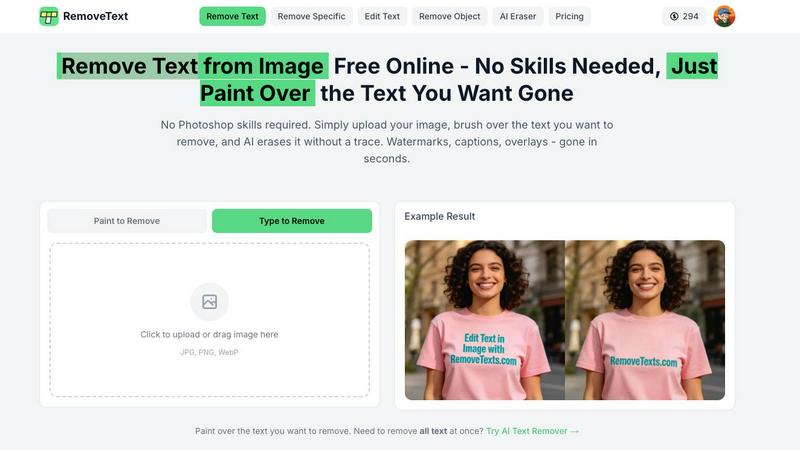
RemoveTexts is a free AI tool that instantly removes text from any image with just a brush stroke.
Last updated: March 11, 2026

ShinePhoto
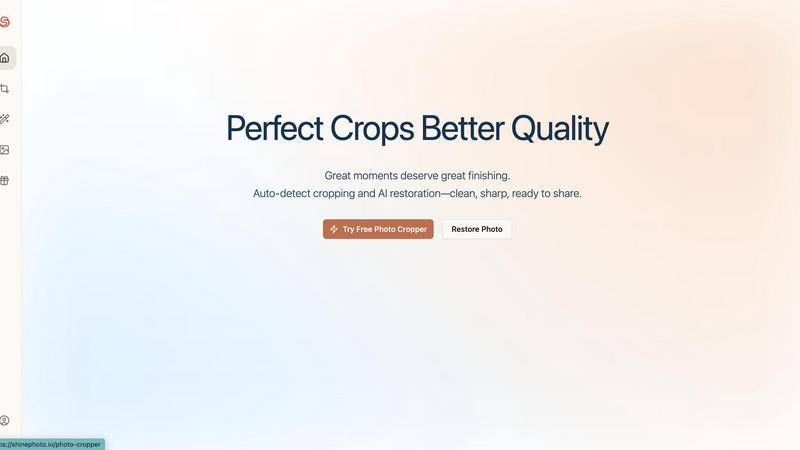
Effortlessly enhance and crop your photos with AI for stunning, share-ready images in just a few clicks.
Last updated: February 28, 2026
Visual Comparison
RemoveTexts
ShinePhoto
Feature Comparison
RemoveTexts
Paint to Remove
For ultimate precision, the Paint to Remove feature gives you complete control. Simply use the digital brush to paint directly over the specific text, watermark, or small object you want gone. The AI then focuses only on those painted areas, erasing them while perfectly rebuilding the background underneath. This is perfect for when you only need to remove a caption from a corner or a watermark from a specific spot, leaving the rest of your image perfectly intact.
Auto Remove All Text
When you need a completely clean slate, the Auto Remove All Text feature is your one-click wonder. Just upload your image and let the AI do all the work. It automatically scans and detects every text element in the photo—be it subtitles, logos, date stamps, or overlays—and removes them all simultaneously. In seconds, you get a pristine image free of any textual distractions, saving you immense time and effort compared to manual removal.
Edit & Replace Text
Go beyond simple removal with the innovative Edit & Replace Text feature. This powerful tool doesn't just erase text; it allows you to change what it says. Want to update a price on a menu or correct a word on a meme? Paint over the text you want to change, type your new words, and the AI will generate replacement text that matches the original font style, color, and size as closely as possible, blending it naturally into the image.
Remove Objects
RemoveTexts is versatile enough to handle more than just text. The Remove Objects feature lets you erase any unwanted element from your photos. Whether it's an unexpected photobomber, a distracting logo, a stray piece of litter, or an unsightly power line, you can brush over it and watch as the AI fills in the space with a believable background, leaving your composition clean and focused.
ShinePhoto
Perfect Cropping
ShinePhoto's auto-detect cropping feature identifies the main subject of your photo and applies a clean, balanced crop. This ensures that distractions are trimmed away, allowing viewers to focus on the essence of the image.
Photo Restoration
The restoration tools in ShinePhoto work tirelessly to repair photo damage, reduce blur, and eliminate compression artifacts. Users can restore clarity and enhance detail with just one click, making old or damaged photos look vibrant again.
Batch Processing
ShinePhoto allows users to upload multiple images at once and process them together. This feature saves time and effort, especially for those with large collections of photos needing similar edits, enhancing productivity significantly.
Smart Manual Control
While ShinePhoto excels at automatic cropping, it also provides users with the option to manually adjust the crop area. This flexibility allows for precise framing, ensuring that every photo meets the user’s specific vision.
Use Cases
RemoveTexts
Cleaning Product Photos for E-Commerce
Online sellers can use RemoveTexts to quickly clean up product images by erasing watermarks from supplier photos, removing promotional text overlays, or deleting price tags from mockups. This results in professional, brand-consistent visuals that are ready for their website or marketplace listings, helping products look their best and boosting sales potential.
Preparing Professional Screenshots and Presentations
Professionals and students often need to share clean screenshots for reports, tutorials, or presentations. RemoveTexts makes it easy to erase irrelevant browser tabs, system notifications, personal data, or UI watermarks from screenshots, ensuring the focus remains solely on the intended content for a polished and professional look.
Creating Clean Social Media and Marketing Graphics
Content creators and marketers can repurpose images by removing dated captions, outdated logos, or distracting text elements from stock photos or old graphics. This allows for the creation of fresh, on-brand visuals for social media posts, blog headers, and advertising materials without starting from scratch or needing complex design software.
Redacting Sensitive Information
Individuals handling documents, forms, or correspondence that contain private details like addresses, phone numbers, or names can use RemoveTexts for quick redaction. Simply paint over the sensitive text to permanently erase it from the image, providing a simple layer of privacy protection for shared documents.
ShinePhoto
Family Photo Restoration
For families looking to restore old photographs, ShinePhoto provides an easy solution to bring faded or damaged images back to life. Users can enhance clarity and colors, preserving precious memories for future generations.
Professional Photography Workflow
Photographers can streamline their editing process using ShinePhoto's batch processing and auto-cropping features. This allows them to focus on their creative vision while letting the AI handle repetitive tasks.
Event Photo Management
After capturing an event, users can quickly upload and edit large batches of photos. ShinePhoto's tools make it simple to crop and enhance images, preparing them for sharing on social media or with clients.
Social Media Sharing
Users looking to enhance their social media presence can use ShinePhoto to polish their photos. With just a few clicks, they can crop, restore, and upscale images, making them share-ready and visually appealing.
Overview
About RemoveTexts
RemoveTexts is your go-to, hassle-free solution for cleaning up images in seconds. It's an AI-powered online tool designed to remove unwanted text, watermarks, date stamps, and even objects from your photos with incredible ease. Forget about complex software like Photoshop that requires steep learning curves and hours of manual editing. With RemoveTexts, you simply upload your image, and with one click or a quick brush stroke, the AI works its magic. It intelligently detects text, erases it completely, and then performs a minor miracle: it seamlessly reconstructs the background so no one can tell anything was ever there. This tool is perfect for a wide range of users, from social media creators and marketers who need clean product shots and promotional graphics, to professionals and students who want to redact information or tidy up screenshots for presentations. Trusted by over 100,000 users worldwide, RemoveTexts delivers professional, traceless results in under 30 seconds, making advanced image editing accessible to absolutely everyone, regardless of their design skills.
About ShinePhoto
ShinePhoto is a freemium AI photo toolkit designed to revolutionize the way users edit and manage their photos. It is particularly beneficial for individuals looking to digitize, organize, and restore their photo collections, whether they are cherished family memories or professional photography work. With advanced features such as batch subject auto-cropping and photo quality restoration, ShinePhoto makes it easy for users to enhance their images in just a few clicks. The platform is built for everyone, from casual users wanting to touch up old album photos to professional photographers seeking to streamline their workflow. ShinePhoto’s powerful AI capabilities ensure that photos are not only preserved but also enhanced for sharing, making it an invaluable tool for anyone who appreciates the art of photography. With a user-friendly interface, ShinePhoto allows for quick uploads, effortless cropping, and seamless restoration, ensuring that every moment captured shines brightly.
Frequently Asked Questions
RemoveTexts FAQ
Is RemoveTexts really free to use?
Yes, RemoveTexts offers a free online tool that allows you to upload images and remove text without any cost. You can access core features like painting over text to remove it and download your cleaned image. For advanced features like auto-removing all text or using high-resolution 4K output, you may need to explore their premium plans.
What image formats does RemoveTexts support?
RemoveTexts supports all the most common image formats, including JPG, PNG, and WebP. This covers the vast majority of images you'll encounter from cameras, screenshots, and the web. Just ensure your file is under the size limit (typically 10MB) for a smooth upload and processing experience.
How does the AI remove text without leaving a trace?
The tool uses advanced deep learning inpainting technology, similar to systems developed by leading tech companies. The AI doesn't just delete pixels; it analyzes the patterns, colors, and textures of the pixels surrounding the text. It then intelligently generates new background content that matches this context, filling in the erased area so seamlessly that it becomes indistinguishable from the original image.
Can I use RemoveTexts on my phone?
Absolutely! Since RemoveTexts is a web-based online tool, it works directly in your mobile phone's browser (like Chrome or Safari). There's no app to download. You can upload images from your phone's gallery, use the brush tool on your touchscreen to paint over text, and download the clean result straight to your device, making it incredibly convenient for on-the-go editing.
ShinePhoto FAQ
What is ShinePhoto?
ShinePhoto is an AI-powered toolkit that combines a free photo cropper with restoration features, enabling users to crop, enhance, and upscale their images for better quality and presentation.
Is ShinePhoto free to use?
Yes, ShinePhoto is free to use. The photo cropper runs directly in your browser, allowing you to get started without any downloads or subscriptions.
How does photo restoration work?
Photo restoration in ShinePhoto involves uploading an image and utilizing the restoration tools to reduce blur, noise, and damage, resulting in sharper and clearer images based on the original quality.
Can I choose the subject to crop?
Yes, ShinePhoto allows users to specify the subject for cropping. This feature ensures that the photo cropper focuses accurately on the desired target for precise framing.
Alternatives
RemoveTexts Alternatives
RemoveTexts is a popular AI-powered image editing tool that specializes in quickly and intelligently removing text from any picture. It falls into the category of automated, user-friendly photo editors designed to simplify tasks that once required complex software like Photoshop. It's a great solution for anyone needing to clean up screenshots, erase watermarks, or delete unwanted subtitles and date stamps. Users often explore alternatives for a variety of reasons. Some might be looking for a different pricing model or a free tier with more generous limits. Others may need specific features like batch processing, integration with other platforms, or tools that go beyond just text removal. The platform itself can also be a factor, as some prefer desktop software over web-based tools or need a dedicated mobile app. When choosing an alternative, consider what matters most for your workflow. Key factors include the accuracy and quality of the AI's editing, the speed of processing, the range of supported file formats and output resolutions, and overall ease of use. It's also wise to check the privacy policy to understand how your uploaded images are handled.
ShinePhoto Alternatives
ShinePhoto is an innovative AI-driven photo editing tool that falls within the image and photo category. It is designed to enhance and restore photos effortlessly, making it particularly appealing to users who want to transform their image collections into share-ready masterpieces with minimal effort. However, many users often seek alternatives due to various reasons such as pricing structures, specific feature needs, or compatibility with different platforms. When searching for an alternative, it’s crucial to assess what features are most important to you, such as ease of use, batch processing capabilities, or advanced editing tools. Additionally, consider the pricing model—whether it's freemium, subscription-based, or a one-time purchase—and if it aligns with your budget and editing requirements.